How to Speed Up Your Laptop in 5 Minutes
No new hardware required. These quick fixes target the most common causes of a slow laptop.
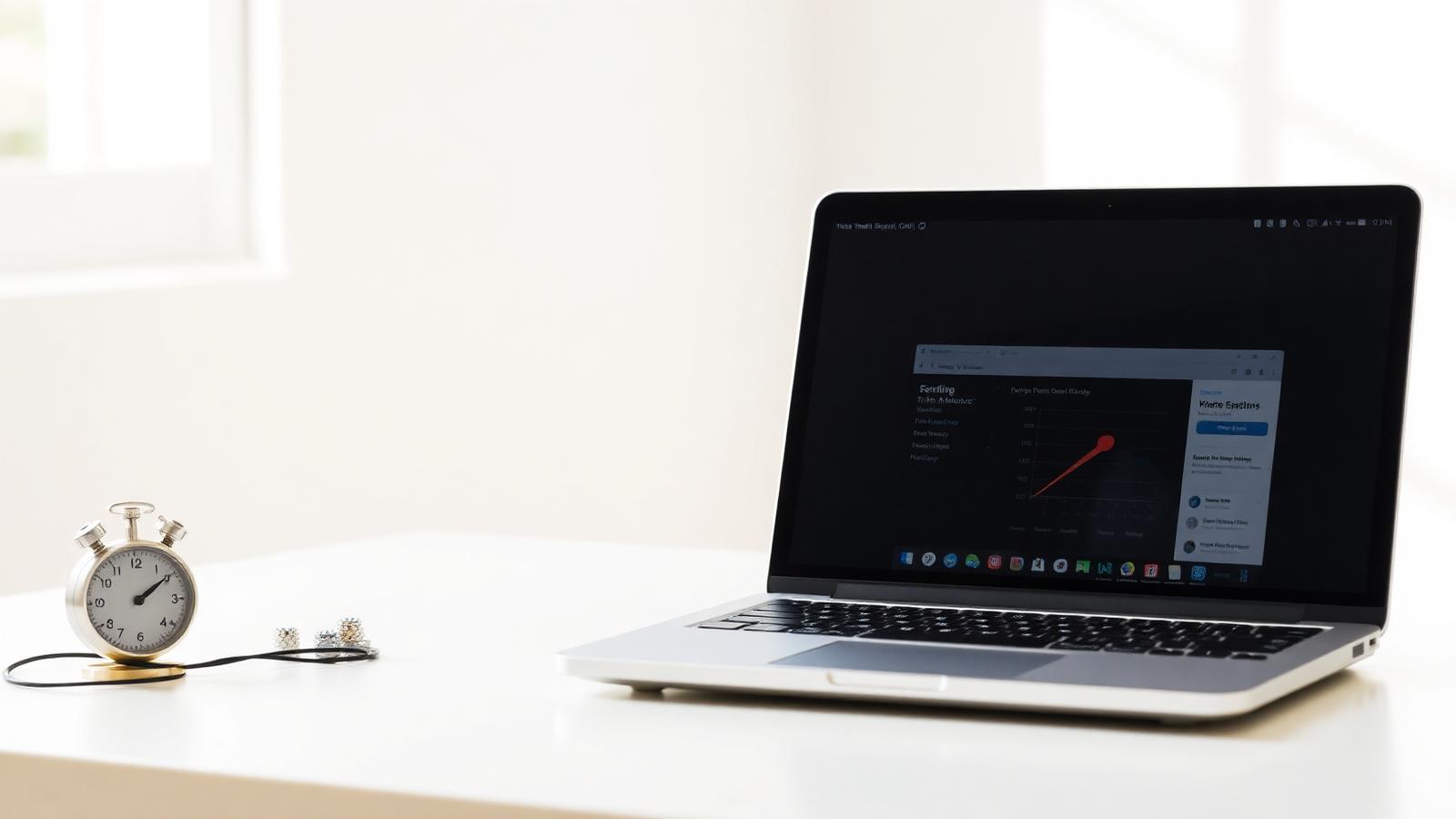
Before you assume your laptop needs replacing, it's worth spending five minutes on a few settings that are the most common causes of a laptop feeling sluggish. None of these require installing anything or opening up the case.
Close and check your startup programs
Every app that launches automatically when you turn on your laptop eats into your boot time and background memory, even ones you never open. On Windows, open Task Manager (Ctrl+Shift+Esc) and click the Startup apps tab. Disable anything you don't need running constantly, things like chat apps, cloud backup tools, or software you rarely use. On a Mac, go to System Settings, then General, then Login Items, and remove anything unnecessary from the list.
Check how many browser tabs and extensions are actually open
A browser with 20+ tabs open, especially with heavy sites like video streaming or social media, can quietly consume more RAM than anything else running on the laptop. Close tabs you're not actively using, and check your browser's extensions list for anything installed a long time ago and forgotten. Old, unused extensions run in the background on every page you visit, even ones you never click.
Restart, don't just sleep, your laptop
Putting a laptop to sleep every night instead of fully restarting it means background processes, memory leaks, and temporary files pile up over days or weeks. A full restart clears all of that out. If it's been more than a few days since your laptop actually restarted, that's often the single fastest fix available.
Check available storage space
Windows and macOS both slow down significantly when the main drive gets close to full, generally under about 10-15% free space remaining. Check your storage in Settings (Windows: Settings > System > Storage; Mac: About This Mac > Storage) and clear out large files, old downloads, or unused applications if you're running low.
Turn off visual effects you don't need
Animations, transparency effects, and shadow effects look nice but cost a small amount of processing power continuously. On Windows, search "Adjust the appearance and performance of Windows" in the Start menu and select "Adjust for best performance" to turn most of them off at once. This makes a bigger difference on older or lower-spec laptops than on newer ones.
Run the built-in disk cleanup tool
Windows has a built-in Disk Cleanup tool (search for it in the Start menu) that clears temporary files, old Windows update files, and other clutter that accumulates over time without you noticing. It's safe to run and often frees up meaningful space in under a minute.
If you've tried all of the above and your laptop is still consistently slow, that's usually a sign of a hardware limitation, like not enough RAM for how you use the laptop, rather than something a software fix can solve.
“If it's been more than a few days since your laptop actually restarted, that's often the single fastest fix available.”
Keep reading
More in How-To
How-To
How to Tell If a Laptop "Deal" Is Actually a Good Price
With laptop prices climbing industry-wide, here's how to check whether a discount is real before you buy.
Peter Smith
How-To
How to Remove Bloatware From a New Laptop
Most new Windows laptops ship with trial software and manufacturer apps you didn't ask for. Here's how to clean them out safely.
Sam Clark
Buying Guides
Best Gaming Laptops Under $1,000 (September 2026)
Five gaming laptops that run modern titles at 1080p without crossing the four-figure line, ranked by what actually matters in games.
Sara Judy