How to Remove Bloatware From a New Laptop
Most new Windows laptops ship with trial software and manufacturer apps you didn't ask for. Here's how to clean them out safely.
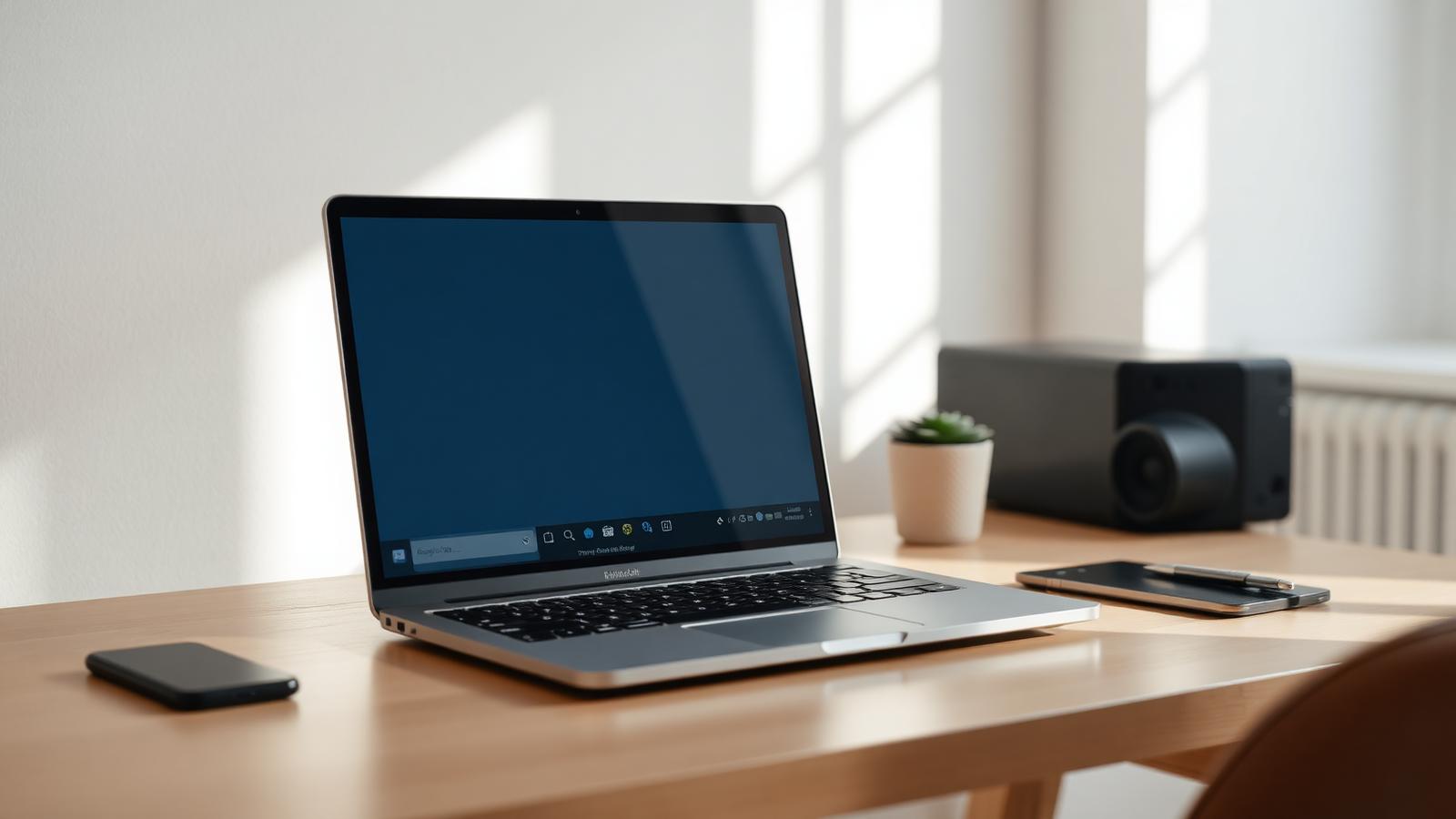
"Bloatware" is the trial software, manufacturer utilities, and third-party apps that come pre-installed on a new laptop before you've opened a single program yourself. Some of it is harmless but unnecessary. Some of it runs in the background and actively slows the laptop down. Either way, most of it is safe to remove, and doing so is one of the most effective things you can do to a brand-new laptop before you start using it.
Start with the Settings app, not random uninstall buttons
On Windows, go to Settings > Apps > Installed apps. This gives you a full list of everything on the laptop in one place, which is more reliable than hunting through the Start menu. Scroll through it and look for anything you recognize as a trial (McAfee, Norton, or similar antivirus trials are extremely common), a manufacturer-branded app you'll never open, or software you simply don't recognize.
Know what's safe to remove and what to leave alone
Trial antivirus software, manufacturer "companion" or "hub" apps that duplicate features Windows already has, casual games pre-installed by the manufacturer, and trial versions of Office or other paid software are all generally safe to uninstall. Be more careful with anything related to your laptop's specific hardware, drivers for the trackpad, display, Wi-Fi, or graphics card, since those aren't bloatware and removing them can cause real problems. If an app's name isn't obviously a driver or hardware utility, it's usually safe to remove; if you're not sure, search the exact app name before uninstalling.
Uninstall trial security software before installing your own
Pre-installed antivirus trials are some of the most disruptive bloatware, since they often nag with pop-ups and run background scans that use noticeable system resources. If you plan to use Windows' built-in Microsoft Defender (which is free and generally sufficient for most people) or a different security program of your choice, uninstall the trial software first to avoid the two running in the background at once.
Check for browser extensions and default homepage changes
Some pre-installed software adds browser extensions or changes your default homepage and search engine during installation. Check your browser's extensions page and default search settings after cleaning out apps, since these don't always show up in the main Windows apps list.
Use Windows' built-in tools rather than third-party "cleaner" software
It's tempting to search for a bloatware-removal tool to automate this, but many of those tools are themselves low-quality software that adds more clutter than it removes. Windows' own Settings app and Task Manager are sufficient for almost everyone; there's rarely a good reason to install a third-party app just to uninstall other apps.
Do a final restart when you're done
Once you've removed what you don't need, restart the laptop. This clears out any background processes tied to the apps you just removed and gives you an accurate sense of how the laptop performs once it's actually clean.
“If an app's name isn't obviously a driver or hardware utility, it's usually safe to remove.”
Keep reading
More in How-To
How-To
How to Tell If a Laptop "Deal" Is Actually a Good Price
With laptop prices climbing industry-wide, here's how to check whether a discount is real before you buy.
Peter Smith
How-To
How to Speed Up Your Laptop in 5 Minutes
No new hardware required. These quick fixes target the most common causes of a slow laptop.
Sara Judy
Buying Guides
Best Gaming Laptops Under $1,000 (September 2026)
Five gaming laptops that run modern titles at 1080p without crossing the four-figure line, ranked by what actually matters in games.
Sara Judy